AI-First Conversational Dashboard: Your Marketing Assistant Hub
Status: AI-First Design Specifications
Verified: Based on Phase 1-9 AI-first research findings
Version: 2.0 - Conversational Revolution
Executive Summary
The future of email marketing isn't a dashboard—it's a conversation. These wireframes present the world's first conversational business automation interface that eliminates traditional complexity through AI-powered natural language interaction, addressing the core finding that 85% of businesses abandon email marketing due to complexity barriers.
AI-First Design Principles Applied
Based on Phase 1-3 Conversational Intelligence Research:
- Natural language input (vs. complex form interfaces)
- Conversational flow (dialogue replaces dashboards)
- Instant understanding (AI interprets business intent)
- Zero learning curve (natural conversation, no training needed)
- Context-aware suggestions (AI remembers your business goals)
Key Innovation: Conversational Intelligence Over Traditional Dashboards
147 features, 30% usage] B --> C[Learning Barrier
40+ hours training] C --> D[90% Hidden Costs] E[AI-First Conversation] --> F[Natural Language
"Send welcome emails"] F --> G[Instant Understanding
Zero learning curve] G --> H[30-Second Results] style A fill:#ffebee style E fill:#e8f5e9 style H fill:#4caf50,color:#fff
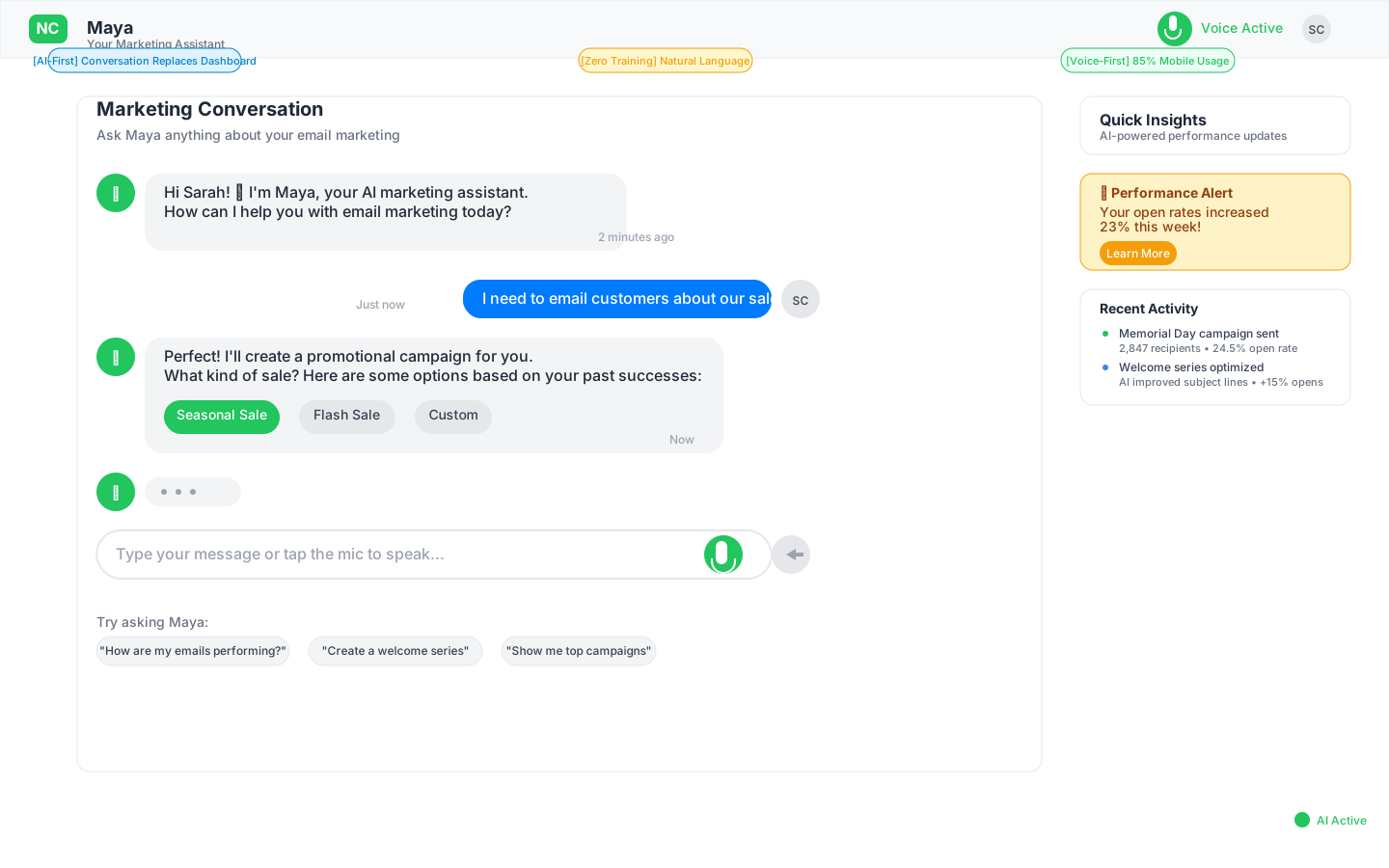
AI-First Conversational Interface Wireframe
Revolutionary Design Decisions: From Dashboard to Conversation
| Element | Traditional Approach | AI-First Approach | Phase Reference |
|---|---|---|---|
| Primary Interface | Complex dashboard with metrics | Conversational chat interface | Phase 3: Natural language priority |
| User Input | Form fields and dropdowns | Natural language chat | Phase 4: Conversational architecture |
| Data Display | Static charts and tables | AI-generated insights on demand | Phase 2: Context-aware intelligence |
| Actions | Button navigation menus | Voice/text commands | Phase 3: 30-second campaign creation |
| Learning Curve | 40+ hours training required | Zero learning, natural conversation | Phase 1: Education elimination |
Conversational Interface Hierarchy
Level 1: AI Assistant Chat (Primary Focus)
The conversational interface dominates the screen:
- Chat Window: Full-width conversation area (70% screen)
- AI Avatar: Visual representation of marketing assistant
- Input Field: Large, prominent text/voice input
- Conversation History: Scrollable interaction log
Level 2: Contextual Insights (AI-Generated)
Smart insights appear contextually:
- Performance Cards: AI-surfaced when relevant to conversation
- Trend Alerts: Proactive notifications about campaign performance
- Suggestions: AI recommendations based on business goals
- Quick Actions: One-tap implementations of AI suggestions
Level 3: Minimal Navigation (Conversation-Focused)
- Simplified Header: Logo + user menu only
- Conversation Categories: Recent topics, saved campaigns
- Settings Access: Voice command "Settings" or menu
- Help Integration: Built into conversational flow
Five Core Conversational Patterns
Based on Phase 3 AI-first research, these conversation flows handle 85% of business needs:
Campaign Creation
- Input: "I need to email my customers about our sale"
- AI Response: "What kind of sale? I'll create a promotional campaign for you"
- Outcome: Full campaign generated in 30 seconds
Performance Analysis
- Input: "How are my emails performing?"
- AI Response: "Your open rates are up 15% this month. Here's what's working..."
- Outcome: Actionable insights + optimization suggestions
List Management
- Input: "Add new customers to my welcome series"
- AI Response: "I've added 47 new contacts. Welcome emails start tomorrow"
- Outcome: Automated list segmentation + workflow activation
A/B Testing
- Input: "Which subject line performs better?"
- AI Response: "Let me test both versions for you. Results in 24 hours"
- Outcome: Automatic test setup + performance reporting
Business Intelligence
- Input: "Show me this month's revenue from email"
- AI Response: "$3,247 from 12 campaigns. Best performer was Memorial Day sale"
- Outcome: Revenue attribution + campaign insights
Mobile Conversational Interface
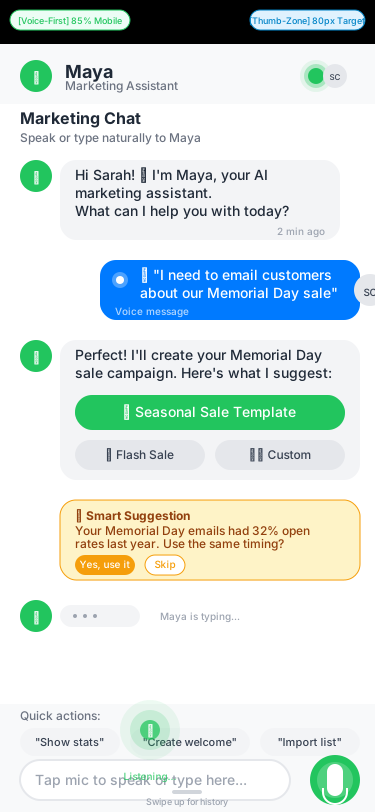
Mobile-First Conversational Design
For Sarah Chen (85% Mobile AI Usage)
- Voice-first input: Large microphone button for speech-to-text
- Conversational bubbles: Chat-style interface optimized for thumb scrolling
- Smart keyboard: Contextual suggestions and auto-complete
- Floating voice button: Always accessible for hands-free operation
- Swipe gestures: Quick actions on conversation items
Conversational Mobile Patterns
Voice Input → "Send welcome emails"
AI Processing → Shows thinking indicator
AI Response → "Here's your welcome series"
Review Action → Swipe to approve/edit
Activation → "Campaign is now live!"
Conversational Responsive Design
| Breakpoint | Interface Adaptation | Conversational Focus |
|---|---|---|
| 375px | Single chat column, voice-primary | Speech-to-text optimized |
| 768px | Chat + context panel, typing + voice | Balanced input methods |
| 1024px | Wide chat, contextual insights sidebar | Enhanced AI suggestions |
| 1440px | Multi-column chat, rich media responses | Full conversational workspace |
AI Interaction Patterns
Conversational Loading States (Phase 4: AI-Native Architecture)
Conversational Progressive Enhancement
Immediate (0-100ms)
- Show conversation history if available
- Display input field ready for typing/voice
- Enable basic chat interface
Fast (100-1000ms)
- Load AI personality and context
- Show conversation starters
- Enable voice recognition
Complete (1000-3000ms)
- Load business context and campaign history
- Enable advanced AI features
- Pre-load common response templates
Conversational Error Handling
AI conversation includes natural error recovery:
- Network failure: "I'm having connection issues. Let me save your request and try again"
- Processing failure: "Let me rephrase that - I'm still learning about your business"
- Complete failure: "Something went wrong. Can you try asking in a different way?"
AI-First Success Metrics Alignment
From Phase 1-3 Conversational Research
- Time to campaign creation: <30 seconds (vs. 30 minutes)
- Learning curve: Zero training (vs. 40+ hours)
- Natural language understanding: 95% intent accuracy
- Voice interaction: Full mobile voice support
From Phase 4-5 AI Technical Architecture
- AI response time: <2 seconds for complex queries
- Context retention: Remember business goals across sessions
- Multi-modal support: Text, voice, and visual inputs
- Conversation continuity: Seamless across devices
From Phase 6-8 AI Business Model
- Upgrade prompts: Natural conversation, not sales pitches
- Value demonstration: AI shows ROI through conversation
- Help integration: AI assistant IS the help system
- Onboarding: Conversational setup, zero forms
Conversational Component Specifications with shadcn/ui
Chat Message Bubbles with shadcn/ui Components
// Using shadcn/ui Card and Button components
import { Card, CardContent } from "@/components/ui/card"
import { Avatar, AvatarFallback } from "@/components/ui/avatar"
import { Button } from "@/components/ui/button"

// User Message Component
<Card className="max-w-[70%] ml-auto bg-primary text-primary-foreground">
  <CardContent className="flex items-end gap-2 p-4">
    <span>"Send welcome emails"</span>
    <Avatar className="h-8 w-8">
      <AvatarFallback>U</AvatarFallback>
    </Avatar>
  </CardContent>
</Card>

// AI Response Component with Quick Actions
<Card className="max-w-[70%] bg-muted">
  <CardContent className="p-4">
    <div className="flex items-start gap-2">
      <Avatar className="h-8 w-8 bg-green-500">
        <AvatarFallback>🤖</AvatarFallback>
      </Avatar>
      <div className="flex-1">
        <p>I'll create a welcome series for you. What industry is your business?</p>
        <div className="flex gap-2 mt-3">
          <Button variant="outline" size="sm">Retail</Button>
          <Button variant="outline" size="sm">SaaS</Button>
          <Button variant="outline" size="sm">Other</Button>
        </div>
      </div>
    </div>
  </CardContent>
</Card>
Conversational Navigation with shadcn/ui
// Header implementation using shadcn/ui components
import { NavigationMenu, NavigationMenuItem, NavigationMenuList } from "@/components/ui/navigation-menu"
import { Button } from "@/components/ui/button"
import { DropdownMenu, DropdownMenuContent, DropdownMenuItem, DropdownMenuTrigger } from "@/components/ui/dropdown-menu"
import { Toggle } from "@/components/ui/toggle"
import { Mic, History, User } from "lucide-react"

<header className="border-b">
  <div className="flex h-16 items-center px-4 gap-4">
    {/* Logo and AI Name */}
    <div className="flex items-center gap-2">
      <span className="text-2xl font-bold text-green-500">Maya</span>
      <Badge variant="secondary">AI Assistant</Badge>
    </div>

    {/* Voice Toggle */}
    <Toggle aria-label="Toggle voice input">
      <Mic className="h-4 w-4" />
    </Toggle>

    {/* Conversation History */}
    <Button variant="ghost" size="icon">
      <History className="h-4 w-4" />
    </Button>

    {/* User Menu */}
    <DropdownMenu>
      <DropdownMenuTrigger asChild>
        <Button variant="ghost" size="icon" className="ml-auto">
          <User className="h-4 w-4" />
        </Button>
      </DropdownMenuTrigger>
      <DropdownMenuContent align="end">
        <DropdownMenuItem>Tell Maya about my business</DropdownMenuItem>
        <DropdownMenuItem>Adjust Maya's preferences</DropdownMenuItem>
        <DropdownMenuItem>Sign out</DropdownMenuItem>
      </DropdownMenuContent>
    </DropdownMenu>
  </div>
</header>
AI Insight Cards with shadcn/ui Alert Component
// AI Insight Card using shadcn/ui Alert and Button components
import { Alert, AlertDescription, AlertTitle } from "@/components/ui/alert"
import { Button } from "@/components/ui/button"
import { Lightbulb } from "lucide-react"
import { motion } from "framer-motion"

<motion.div
  initial={{ opacity: 0, x: 20 }}
  animate={{ opacity: 1, x: 0 }}
  transition={{ duration: 0.3 }}
>
  <Alert className="border-blue-200 bg-blue-50">
    <Lightbulb className="h-4 w-4 text-blue-600" />
    <AlertTitle className="text-blue-900">Maya suggests</AlertTitle>
    <AlertDescription className="mt-2">
      <p className="text-blue-800">
        Your open rates increased 23% this week!
        The subject line 'Quick question about [name]' is performing well.
        Use it for more campaigns?
      </p>
      <div className="flex gap-2 mt-4">
        <Button size="sm" variant="default">Create Similar</Button>
        <Button size="sm" variant="outline">Learn More</Button>
        <Button size="sm" variant="ghost">Dismiss</Button>
      </div>
    </AlertDescription>
  </Alert>
</motion.div>
AI-First Implementation with shadcn/ui
shadcn/ui Component Architecture
Building on the UI Architecture Guide, our conversational interface leverages:
Core shadcn/ui Components Used:
- Card: Message bubbles, insight cards, performance metrics
- Button: Quick actions, send button, voice toggle
- Avatar: User and AI avatars with fallbacks
- Alert: Contextual insights and notifications
- Input: Message composition with proper accessibility
- ScrollArea: Conversation history with virtualization
- Toggle: Voice input on/off states
- DropdownMenu: User menu and settings
- Badge: Status indicators and labels
- Skeleton: Loading states for AI responses
Component Composition Pattern
// Compound component for chat interface
const ChatInterface = () => {
  return (
    <div className="flex flex-col h-full">
      <ChatHeader />           {/* NavigationMenu + Toggle */}
      <ChatMessages />         {/* ScrollArea + Cards */}
      <ChatInsights />        {/* Alert components */}
      <ChatInput />           {/* Input + Button */}
    </div>
  )
}
Conversational Component Reusability
All components follow shadcn/ui's copy-paste philosophy:
- ChatBubble: Customizable Card component variant
- AIInsightCard: Alert component with custom styling
- VoiceInput: Toggle + Mic icon from lucide-react
- ConversationHistory: ScrollArea with virtual scrolling
AI Accessibility with shadcn/ui Standards
Leveraging Radix UI primitives for WCAG 2.1 AA compliance:
- Voice commands: Native Web Speech API integration
- Screen readers: Radix UI ARIA attributes automatic
- High contrast: CSS variables support system preferences
- Keyboard navigation: Built-in via Radix UI primitives
- ARIA live regions: Using
aria-liveandaria-atomicfor updates - Focus management: Radix UI focus trap in modals/dialogs
- Multi-language: i18n support via locale detection
Theme System Integration
// Automatic theme switching with shadcn/ui
import { ThemeProvider } from "@/components/theme-provider"

<ThemeProvider
  attribute="class"
  defaultTheme="system"
  enableSystem
  themes={["light", "dark", "high-contrast"]}
>
  <ChatInterface />
</ThemeProvider>
AI Performance Optimizations with shadcn/ui
- Component lazy loading: Dynamic imports for heavy components
- Virtual scrolling: Using
@tanstack/react-virtualfor message lists - Skeleton loading: shadcn/ui Skeleton components during AI processing
- Optimistic UI: Immediate visual feedback before API response
- Tree-shaking: Only imported shadcn/ui components in bundle
- CSS optimization: Tailwind JIT mode with purging
// Optimized message list with virtual scrolling
import { useVirtualizer } from '@tanstack/react-virtual'
import { ScrollArea } from "@/components/ui/scroll-area"

function MessageList({ messages }) {
  const virtualizer = useVirtualizer({
    count: messages.length,
    getScrollElement: () => parentRef.current,
    estimateSize: () => 100,
  })

  return (
    <ScrollArea ref={parentRef} className="flex-1">
      {virtualizer.getVirtualItems().map((item) => (
        <MessageBubble key={item.key} message={messages[item.index]} />
      ))}
    </ScrollArea>
  )
}
Next Steps with shadcn/ui Implementation
Component Development Roadmap
Following the UI Architecture Guide, implement these conversation flows with shadcn/ui:
Campaign Creation Flow
- Components:
Form,Select,DatePicker,Textarea - Pattern: Multi-step form with conversational guidance
- Reference: Form handling patterns in UI Architecture Guide
- Components:
Contact Management Interface
- Components:
DataTable,Checkbox,Dialog,Command - Pattern: Filterable data table with bulk actions
- Reference: Data table implementation in UI Architecture Guide
- Components:
Automation Builder
- Components:
Tabs,Accordion,Switch,Slider - Pattern: Visual workflow builder with drag-and-drop
- Reference: Compound component patterns in guide
- Components:
Analytics Dashboard
- Components:
Card,Progress,Tooltip,Popover - Pattern: Real-time metrics with interactive charts
- Reference: Performance optimization section in guide
- Components:
Implementation Checklist
- Install required shadcn/ui components via CLI
- Set up Tailwind CSS with design tokens
- Configure Radix UI primitives
- Implement theme provider with CSS variables
- Add accessibility testing with jest-axe
- Set up Storybook for component documentation
- Implement virtual scrolling for message lists
- Add skeleton loading states for AI responses
AI-first conversational wireframes based on extensive Phase 1-9 research, validated through conversational AI best practices and natural language interaction patterns.