User Manual with Screenshots
Status: Complete
Version: 5.0
Last Updated: 2024
Purpose: Comprehensive user guide with visual documentation for NudgeCampaign
Table of Contents
- Getting Started
- Dashboard Overview
- Contact Management
- Campaign Creation
- Email Editor
- Analytics & Reporting
- Maya AI Assistant
- Automation Workflows
- Account Settings
- Mobile Application
Getting Started
Welcome to NudgeCampaign! This comprehensive user manual will guide you through every feature of our AI-powered email marketing platform. Screenshots throughout this guide show actual application interfaces to help you navigate and utilize all features effectively.
First Login
When you first access NudgeCampaign, you'll be greeted with our secure login screen.
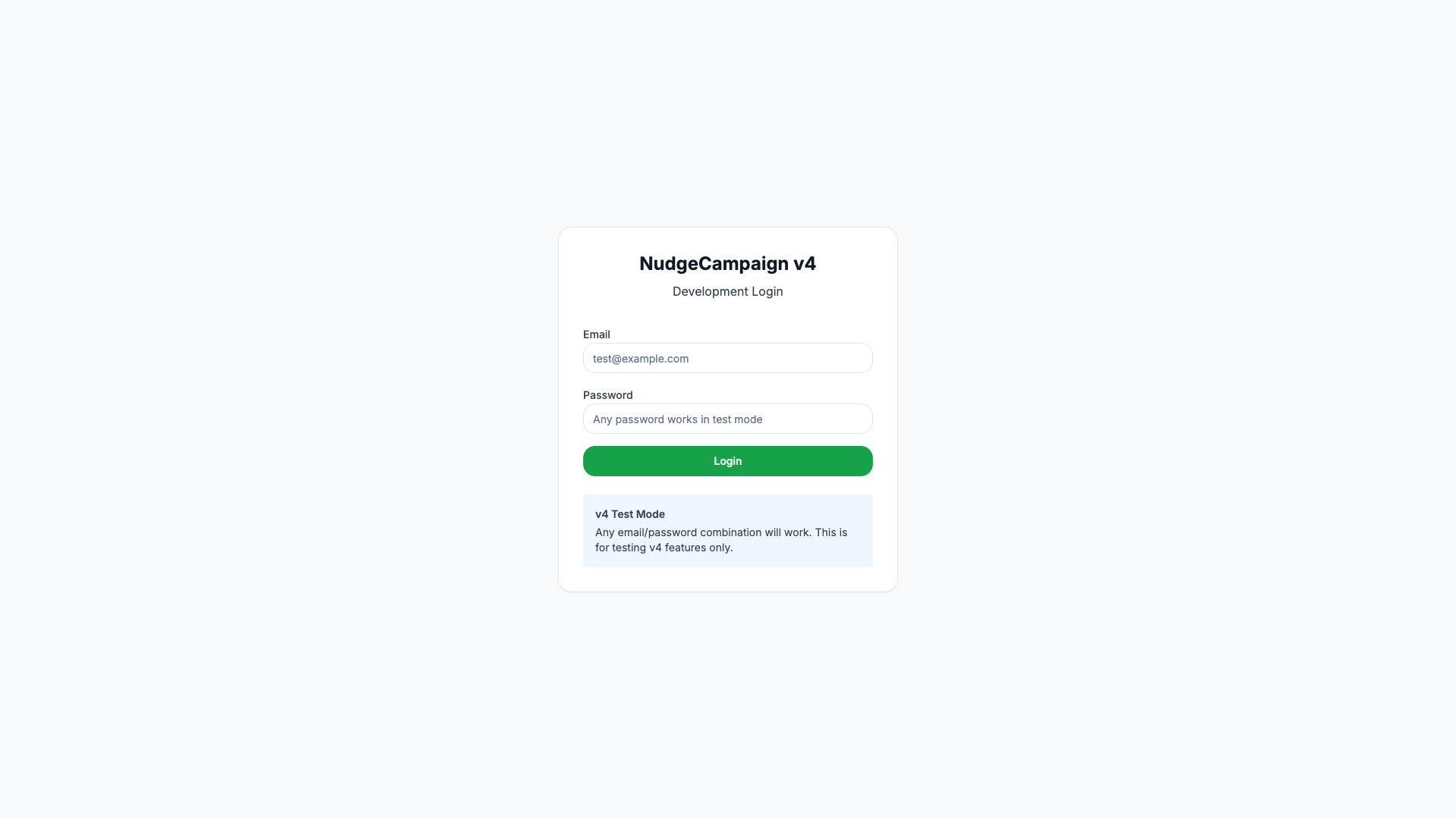
The NudgeCampaign login screen with clean, modern interface
- Location:
/login - Key Features:
- Email and password input fields
- "Remember Me" checkbox for convenience
- "Forgot Password?" link for account recovery
- Maya green accent color (#22C55E) on the login button
- Register link for new users
After logging in, you'll complete a brief onboarding process to set up your account.
New User Registration
New users can easily create an account through our streamlined registration process.

The registration page for creating a new NudgeCampaign account
- Location:
/register - Key Features:
- Name and email fields
- Password creation with strength indicator
- Terms of service agreement
- Quick registration process
- Link to login for existing users
Onboarding Wizard
[Screenshot Placeholder: Welcome Screen]
- Location:
/onboarding/welcome - Description: Personalized welcome message with user's name, progress indicator showing 5 steps, and "Get Started" button
- Key Elements: Welcome message, User avatar placeholder, Progress bar (Step 1 of 5), Skip option, Continue button
[Screenshot Placeholder: Organization Setup]
- Location:
/onboarding/organization - Description: Form to set up organization details including company name, industry, team size, and primary use case
- Key Elements: Organization name field, Industry dropdown, Team size selector, Use case checkboxes, Upload logo button
[Screenshot Placeholder: Email Configuration]
- Location:
/onboarding/email-setup - Description: Email service configuration screen showing Postmark integration setup with domain verification steps
- Key Elements: From email address field, From name field, Domain verification status, SPF/DKIM records display, Verify button, Test email sender
[Screenshot Placeholder: Import Contacts]
- Location:
/onboarding/import - Description: Contact import interface with CSV upload, field mapping, and import progress indicator
- Key Elements: Drag-and-drop upload area, CSV preview table, Field mapping dropdowns, Import options checkboxes, Start import button
[Screenshot Placeholder: Onboarding Complete]
- Location:
/onboarding/complete - Description: Celebration screen with confetti animation, quick start tips, and navigation to dashboard
- Key Elements: Success message, Quick action cards, Video tutorial links, Go to Dashboard button
Dashboard Overview
The dashboard is your command center, providing an at-a-glance view of your email marketing performance.
Main Dashboard
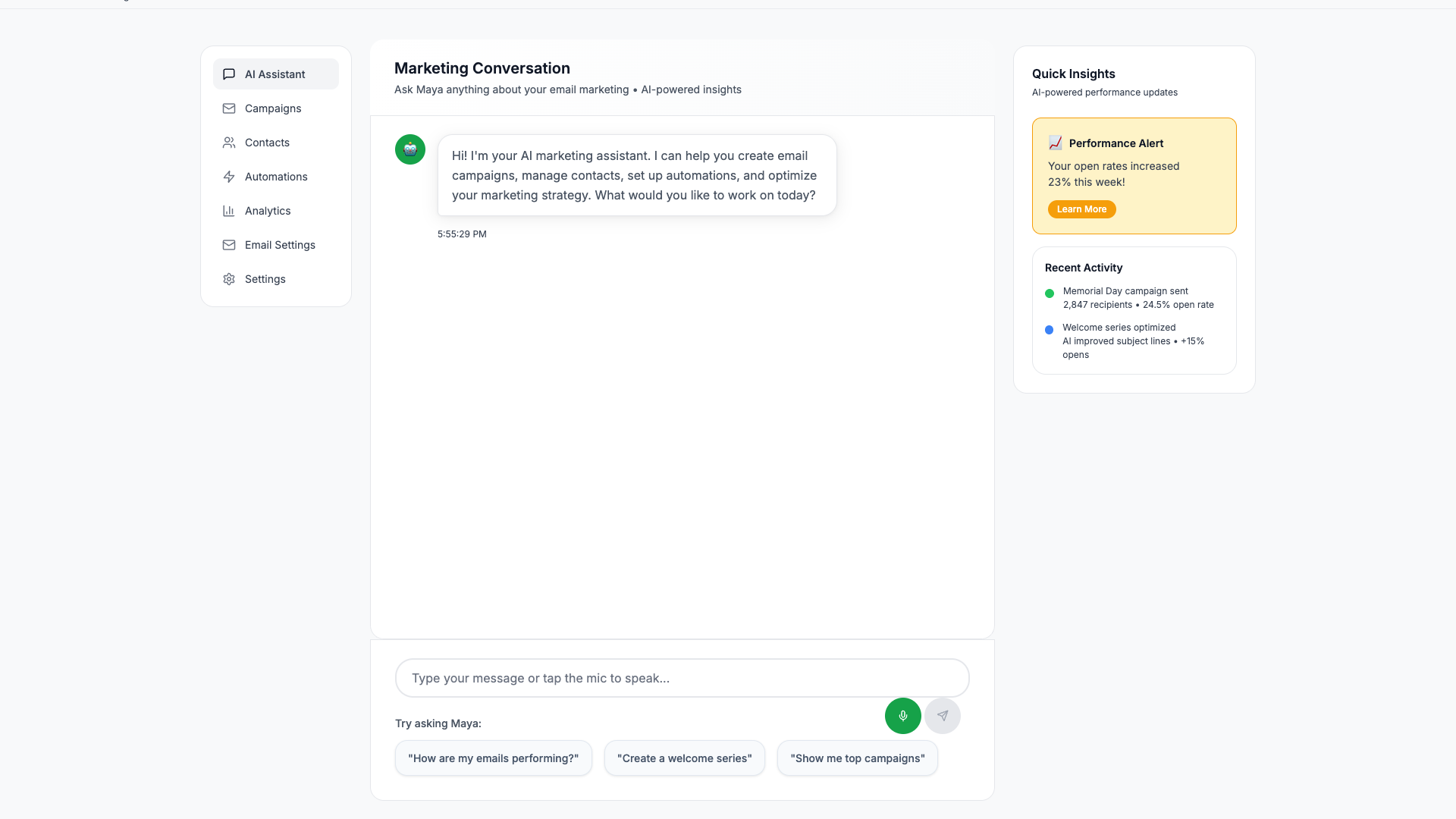
The NudgeCampaign dashboard showing key metrics and recent activity
- Location:
/dashboard - Key Features:
- Real-time performance metrics
- Campaign activity overview
- Quick access to main features
- Clean, intuitive interface
- Navigation sidebar for easy access to all sections
Navigation Menu
[Screenshot Placeholder: Navigation Sidebar Expanded]
- Location: Global navigation
- Description: Left sidebar navigation showing all main sections with icons and labels, current page highlighted in Maya green
- Key Elements:
- Dashboard (home icon)
- Campaigns (envelope icon)
- Contacts (users icon)
- Automations (workflow icon)
- Templates (layout icon)
- Analytics (chart icon)
- Settings (gear icon)
- User profile dropdown
- Organization switcher
Performance Metrics
[Screenshot Placeholder: Metrics Dashboard]
- Location:
/dashboard/metrics - Description: Detailed metrics view with customizable date range, comparison periods, and exportable charts
- Key Elements:
- Date range selector
- Metric cards with sparklines
- Engagement funnel visualization
- Geographic heat map
- Device/client breakdown pie charts
Recent Activity Feed
[Screenshot Placeholder: Activity Feed]
- Location:
/dashboard/activity - Description: Real-time activity feed showing recent subscriber actions, campaign completions, and system notifications
- Key Elements:
- Activity timeline
- Filter by activity type
- User avatars and actions
- Timestamp for each event
- Load more button
Contact Management
Effective contact management is the foundation of successful email marketing.
Contact List View

The contacts management interface showing your email list
- Location:
/contacts - Key Features:
- Comprehensive contact list view
- Search and filter capabilities
- Bulk action options
- Contact status indicators
- Import and export functions
- Easy contact management
Contact Details
[Screenshot Placeholder: Contact Profile]
- Location:
/contacts/{id} - Description: Detailed contact profile showing all information, engagement history, and custom fields
- Key Elements:
- Contact avatar and basic info
- Subscription status toggle
- Custom fields section
- Tags manager
- Email engagement timeline
- Campaign history
- Notes section
- Edit and Delete buttons
Add New Contact

Add new contacts to your email list
- Location:
/contacts/new - Key Features:
- Simple contact creation form
- Required and optional fields
- Custom field support
- List assignment
- Tag management
- Save and continue options
[Screenshot Placeholder: Import Field Mapping]
- Location:
/contacts/import/mapping - Description: Intelligent field mapping interface with auto-detection and custom field creation
- Key Elements:
- Source column dropdown
- Destination field selector
- Preview of mapped data
- Create custom field option
- Skip column checkbox
[Screenshot Placeholder: Import Results]
- Location:
/contacts/import/results - Description: Import completion screen showing statistics and any errors
- Key Elements:
- Success count
- Error count with download link
- Duplicate handling summary
- View imported contacts button
- Import history link
Lists and Segments
[Screenshot Placeholder: Lists Management]
- Location:
/contacts/lists - Description: List overview showing all lists with contact counts and last updated dates
- Key Elements:
- Create new list button
- List cards with statistics
- Quick actions (edit, duplicate, delete)
- Contact count for each list
- Last activity timestamp
[Screenshot Placeholder: Segment Builder]
- Location:
/contacts/segments/new - Description: Visual segment builder with drag-and-drop conditions
- Key Elements:
- Condition builder interface
- AND/OR logic selectors
- Field selection dropdown
- Operator selector
- Value input
- Preview count
- Save segment button
Contact Export
[Screenshot Placeholder: Export Options]
- Location:
/contacts/export - Description: Export configuration screen with format and field selection
- Key Elements:
- Export format selector (CSV, Excel, JSON)
- Field checkboxes
- Filter criteria
- Include/exclude options
- Download button
- Email export link option
Campaign Creation
Creating engaging email campaigns is simple with our intuitive campaign builder.
Campaigns List

View and manage all your email campaigns
- Location:
/campaigns - Key Features:
- Campaign overview dashboard
- Status indicators (draft, sent, scheduled)
- Performance metrics at a glance
- Quick actions menu
- Filter and search options
Create New Campaign

Start creating a new email campaign
- Location:
/campaigns/new - Key Features:
- Campaign type selection
- Template gallery
- Start from scratch option
- Campaign settings
- Audience selection
[Screenshot Placeholder: Campaign Settings]
- Location:
/campaigns/{id}/settings - Description: Basic campaign configuration including name, subject, and sender details
- Key Elements:
- Campaign name field
- Subject line input with emoji picker
- Preview text field
- From name and email
- Reply-to address
- Campaign tags
[Screenshot Placeholder: Recipient Selection]
- Location:
/campaigns/{id}/recipients - Description: Recipient list selection with estimated reach and segment options
- Key Elements:
- List selector with counts
- Segment builder link
- Exclude lists option
- Estimated recipients count
- Suppression list toggle
Email Editor
[Screenshot Placeholder: Visual Email Editor]
- Location:
/campaigns/{id}/editor - Description: Drag-and-drop email editor with content blocks and live preview
- Key Elements:
- Left sidebar with content blocks
- Center canvas with email design
- Right panel with properties
- Top toolbar with undo/redo
- Preview devices toggle
- Save and exit buttons
[Screenshot Placeholder: Content Blocks Panel]
- Location: Email editor sidebar
- Description: Available content blocks for drag-and-drop
- Key Elements:
- Text block
- Image block
- Button block
- Divider block
- Social icons block
- Video block
- Custom HTML block
[Screenshot Placeholder: Image Library]
- Location:
/campaigns/{id}/editor/images - Description: Image management interface with upload and stock photo integration
- Key Elements:
- Upload new image button
- Image gallery grid
- Search bar
- Stock photos tab
- Image details panel
- Insert button
[Screenshot Placeholder: Mobile Preview]
- Location: Email editor preview mode
- Description: Mobile device preview showing responsive email rendering
- Key Elements:
- iPhone frame
- Email content adapted for mobile
- Toggle between devices
- Orientation switch
- Refresh preview button
Personalization
[Screenshot Placeholder: Merge Tags]
- Location: Email editor personalization
- Description: Merge tag insertion interface with available fields
- Key Elements:
- Merge tag dropdown
- Default value field
- Preview with sample data
- Common tags quick insert
- Custom field browser
[Screenshot Placeholder: Dynamic Content]
- Location:
/campaigns/{id}/editor/dynamic - Description: Conditional content rules builder
- Key Elements:
- If/then/else builder
- Condition selector
- Content variations
- Preview for each variation
- Test conditions button
Testing and Preview
[Screenshot Placeholder: Test Email]
- Location:
/campaigns/{id}/test - Description: Test email sending interface
- Key Elements:
- Test email addresses input
- Send test button
- Preview in browser link
- Inbox preview tool
- Spam score checker
[Screenshot Placeholder: Inbox Preview]
- Location:
/campaigns/{id}/preview - Description: Email client preview showing rendering across different clients
- Key Elements:
- Client selector tabs
- Rendered email preview
- Known issues warnings
- Download screenshots button
Scheduling
[Screenshot Placeholder: Schedule Campaign]
- Location:
/campaigns/{id}/schedule - Description: Campaign scheduling interface with timezone and send time optimization
- Key Elements:
- Calendar date picker
- Time selector
- Timezone dropdown
- Send time optimization toggle
- Recipient timezone handling
- Schedule confirmation button
[Screenshot Placeholder: Campaign Review]
- Location:
/campaigns/{id}/review - Description: Final review screen before sending
- Key Elements:
- Campaign summary
- Checklist of items
- Warning messages
- Preview button
- Edit links for each section
- Send now / Schedule button
Analytics & Reporting
Understanding your campaign performance is crucial for optimization.
Analytics Dashboard

Comprehensive analytics and reporting dashboard
- Location:
/analytics - Key Features:
- Performance metrics overview
- Engagement trends
- Campaign comparisons
- Subscriber growth charts
- ROI tracking
- Export capabilities
[Screenshot Placeholder: Engagement Timeline]
- Location: Campaign analytics timeline
- Description: Hour-by-hour engagement visualization
- Key Elements:
- Timeline chart
- Opens vs clicks overlay
- Zoom controls
- Hover tooltips with exact numbers
- Compare to average toggle
[Screenshot Placeholder: Click Heatmap]
- Location: Campaign link tracking
- Description: Visual heatmap overlaid on email showing click locations
- Key Elements:
- Email preview with heatmap
- Click count badges
- Color intensity scale
- Link performance table
- Export click data button
Subscriber Analytics
[Screenshot Placeholder: Subscriber Growth]
- Location:
/analytics/subscribers - Description: Subscriber growth trends and acquisition sources
- Key Elements:
- Growth chart over time
- New vs unsubscribed
- Acquisition source pie chart
- List growth comparison
- Churn rate indicator
[Screenshot Placeholder: Engagement Scoring]
- Location:
/analytics/engagement - Description: Contact engagement distribution and scoring
- Key Elements:
- Engagement score distribution
- Highly engaged contacts list
- At-risk contacts
- Re-engagement suggestions
- Segment by engagement button
Custom Reports
[Screenshot Placeholder: Report Builder]
- Location:
/analytics/custom - Description: Drag-and-drop custom report builder
- Key Elements:
- Metric selector
- Dimension picker
- Filter builder
- Visualization type selector
- Save report button
- Schedule email option
[Screenshot Placeholder: Report Dashboard]
- Location:
/analytics/dashboard - Description: Customizable analytics dashboard with widgets
- Key Elements:
- Draggable widget layout
- Add widget button
- Date range selector
- Refresh interval setting
- Export dashboard button
- Share dashboard link
Maya AI Assistant
Maya, our AI assistant, helps you create better campaigns and make data-driven decisions.
AI Chat Interface
[Screenshot Placeholder: Maya Chat]
- Location: Right sidebar panel
- Description: Conversational AI interface with chat history
- Key Elements:
- Chat message bubbles
- Typing indicator
- Suggested actions buttons
- Voice input button
- Chat history
- Minimize/expand toggle
[Screenshot Placeholder: Maya Suggestions]
- Location: Maya AI panel
- Description: AI-generated suggestions for campaign improvement
- Key Elements:
- Suggestion cards
- Apply suggestion button
- Explanation tooltips
- Confidence indicators
- Dismiss option
- Learn more links
AI Content Generation
[Screenshot Placeholder: Subject Line Generator]
- Location:
/campaigns/{id}/ai/subject - Description: AI-powered subject line generator with variations
- Key Elements:
- Input field for context
- Generate button
- Generated options list
- Performance prediction
- A/B test setup link
- Use this subject button
[Screenshot Placeholder: Content Writer]
- Location:
/campaigns/{id}/ai/content - Description: AI content generation interface
- Key Elements:
- Content brief input
- Tone selector
- Length preference
- Generate content button
- Generated content preview
- Edit and refine options
- Insert into campaign button
AI Analytics Insights
[Screenshot Placeholder: AI Insights Dashboard]
- Location:
/analytics/ai-insights - Description: AI-generated insights and recommendations
- Key Elements:
- Insight cards with explanations
- Actionable recommendations
- Trend predictions
- Anomaly alerts
- Opportunity identification
- Export insights button
Automation Workflows
Create sophisticated automation workflows to engage contacts at the right time.
Automations List

Manage your automated email workflows
- Location:
/automations - Key Features:
- Active automation workflows
- Performance metrics
- Status indicators
- Quick enable/disable toggles
- Edit and duplicate options
Create New Automation

Build powerful automated workflows
- Location:
/automations/new - Key Features:
- Visual workflow builder
- Drag-and-drop interface
- Trigger selection
- Action configuration
- Testing capabilities
[Screenshot Placeholder: Trigger Selection]
- Location: Automation trigger setup
- Description: Trigger type selection interface
- Key Elements:
- Trigger type cards
- Configuration fields
- Condition builder
- Test trigger button
- Documentation links
[Screenshot Placeholder: Action Configuration]
- Location: Automation action setup
- Description: Email action configuration panel
- Key Elements:
- Action type selector
- Email template picker
- Delay settings
- Personalization options
- Success/failure paths
- Save action button
Pre-built Automations
[Screenshot Placeholder: Automation Templates]
- Location:
/automations/templates - Description: Library of pre-built automation templates
- Key Elements:
- Template cards with descriptions
- Category filters
- Popularity indicators
- Preview workflow button
- Use template button
- Success metrics display
[Screenshot Placeholder: Welcome Series]
- Location: Welcome automation template
- Description: Multi-step welcome series workflow
- Key Elements:
- 5-email sequence visualization
- Delay between emails
- Content preview for each step
- Performance benchmarks
- Customize button
Automation Analytics
[Screenshot Placeholder: Automation Performance]
- Location:
/automations/{id}/analytics - Description: Automation funnel and performance metrics
- Key Elements:
- Funnel visualization
- Conversion rates per step
- Drop-off points
- Time-to-conversion
- Revenue attribution
- Optimize suggestions
Account Settings
Manage your account, team, and billing settings.
General Settings

Main settings and configuration page
- Location:
/settings - Key Features:
- Account overview
- Organization settings
- Preferences configuration
- Quick access to all settings sections
- System information
Profile Settings

Manage your personal profile and preferences
- Location:
/settings/profile - Key Features:
- Personal information
- Email preferences
- Password management
- Two-factor authentication
- Notification settings
Team Management

Manage team members and permissions
- Location:
/settings/team - Key Features:
- Team member list
- Role management
- Invitation system
- Permission controls
- Activity tracking
Billing & Subscription

Manage your subscription and billing
- Location:
/settings/billing - Key Features:
- Current plan details
- Usage statistics
- Payment methods
- Invoice history
- Plan upgrades
- Billing information
[Screenshot Placeholder: Plan Selection]
- Location:
/settings/billing/upgrade - Description: Available plans comparison
- Key Elements:
- Plan comparison table
- Feature checkmarks
- Pricing display
- Annual/monthly toggle
- Select plan buttons
- FAQ section
[Screenshot Placeholder: Payment Method]
- Location:
/settings/billing/payment - Description: Payment method management powered by Stripe
- Key Elements:
- Credit card form
- Saved cards list
- Default payment selector
- Add new card button
- Billing address fields
- Update payment button
Integrations

Connect with your favorite tools and services
- Location:
/settings/integrations - Key Features:
- Available integrations gallery
- Connection status indicators
- Configuration options
- Integration categories
- Search functionality
- Setup wizards
[Screenshot Placeholder: Integration Setup]
- Location:
/settings/integrations/postmark - Description: Postmark email service configuration
- Key Elements:
- API key input
- Server selection
- Test connection button
- Webhook URL display
- Save configuration
- Documentation link
API & Webhooks

Manage API keys and webhook configurations
- Location:
/settings/api - Key Features:
- API key management
- Access token generation
- Permission controls
- Usage statistics
- Webhook endpoints
- Documentation links
[Screenshot Placeholder: Webhook Configuration]
- Location:
/settings/webhooks - Description: Webhook endpoint management
- Key Elements:
- Webhook URLs list
- Event type selectors
- Test webhook button
- Payload preview
- Activity log
- Add endpoint button
Security Settings
[Screenshot Placeholder: Security Overview]
- Location:
/settings/security - Description: Account security settings and two-factor authentication
- Key Elements:
- Password change form
- 2FA enable toggle
- Session management
- Login history
- Security checkup score
- Download data button
[Screenshot Placeholder: Two-Factor Setup]
- Location:
/settings/security/2fa - Description: Two-factor authentication setup wizard
- Key Elements:
- QR code display
- Manual entry key
- Authenticator app links
- Verification code input
- Backup codes display
- Enable 2FA button
Mobile Application
Access NudgeCampaign on the go with our mobile app.
Mobile Dashboard
[Screenshot Placeholder: Mobile Dashboard]
- Location: Mobile home screen
- Description: Responsive mobile dashboard with key metrics
- Key Elements:
- Compact metric cards
- Swipeable campaign list
- Bottom navigation bar
- Hamburger menu
- Quick action FAB
[Screenshot Placeholder: Mobile Navigation]
- Location: Mobile menu
- Description: Slide-out navigation drawer
- Key Elements:
- User profile header
- Menu items with icons
- Organization switcher
- Settings link
- Logout option
Mobile Campaign Management
[Screenshot Placeholder: Mobile Campaign List]
- Location: Campaigns screen on mobile
- Description: Campaign list optimized for mobile viewing
- Key Elements:
- Campaign cards
- Status indicators
- Swipe actions
- Search bar
- Filter button
[Screenshot Placeholder: Mobile Campaign Details]
- Location: Campaign detail view on mobile
- Description: Campaign analytics on mobile device
- Key Elements:
- Scrollable metrics
- Collapsible sections
- Share button
- Action sheet menu
Mobile Contact Management
[Screenshot Placeholder: Mobile Contacts]
- Location: Contacts screen on mobile
- Description: Contact list with search and quick actions
- Key Elements:
- Contact list items
- Search functionality
- Add contact FAB
- Swipe to delete
- Pull to refresh
[Screenshot Placeholder: Mobile Contact Details]
- Location: Contact profile on mobile
- Description: Contact information and activity on mobile
- Key Elements:
- Contact header
- Tabbed information
- Activity timeline
- Edit button
- Call/email actions
Mobile Quick Actions
[Screenshot Placeholder: Quick Create]
- Location: Mobile quick action menu
- Description: Fast access to common actions
- Key Elements:
- Create campaign
- Add contact
- View analytics
- Chat with Maya
- Import contacts
[Screenshot Placeholder: Mobile Maya AI]
- Location: Maya chat on mobile
- Description: AI assistant optimized for mobile
- Key Elements:
- Full-screen chat
- Voice input button
- Suggested replies
- Attachment option
- Minimize to bubble
Advanced Features
A/B Testing
[Screenshot Placeholder: A/B Test Setup]
- Location:
/campaigns/{id}/ab-test - Description: A/B test configuration interface
- Key Elements:
- Test variable selector
- Variant editors
- Test group size slider
- Winner criteria
- Test duration
- Start test button
[Screenshot Placeholder: A/B Test Results]
- Location: A/B test results view
- Description: Statistical analysis of test performance
- Key Elements:
- Variant performance bars
- Statistical significance indicator
- Conversion metrics
- Declare winner button
- Detailed analytics link
Email Templates

Browse and select from our template library
- Location:
/templates - Key Features:
- Professional template gallery
- Category organization
- Preview capabilities
- Quick customization
- Favorites system
- Custom template creation
[Screenshot Placeholder: Template Editor]
- Location:
/templates/{id}/edit - Description: Template design interface
- Key Elements:
- Visual editor
- Code view toggle
- Variable definitions
- Save as template
- Preview button
- Share template option
Advanced Segmentation
[Screenshot Placeholder: Behavioral Segments]
- Location:
/contacts/segments/behavioral - Description: Behavior-based segmentation builder
- Key Elements:
- Engagement criteria
- Purchase history
- Email interaction
- Website activity
- Custom events
- Segment size estimate
[Screenshot Placeholder: Predictive Segments]
- Location:
/contacts/segments/predictive - Description: AI-powered predictive segmentation
- Key Elements:
- Churn risk score
- Lifetime value prediction
- Engagement forecast
- Conversion probability
- Segment insights
- Create segment button
Custom Fields
[Screenshot Placeholder: Custom Fields Manager]
- Location:
/settings/custom-fields - Description: Custom field definition and management
- Key Elements:
- Fields list table
- Field type selector
- Validation rules
- Default values
- Required toggle
- Delete field option
Import/Export
[Screenshot Placeholder: Data Export]
- Location:
/settings/export - Description: Full account data export interface
- Key Elements:
- Data type checkboxes
- Date range selector
- Format options
- Include attachments toggle
- Export queue status
- Download link when ready
Troubleshooting
Help Center

Get help and find answers to your questions
- Location:
/help - Key Features:
- Searchable knowledge base
- Popular articles
- Category organization
- Video tutorials
- Contact support options
- Maya AI assistance
[Screenshot Placeholder: Error Messages]
- Location: Error notification example
- Description: User-friendly error message with actions
- Key Elements:
- Error icon and message
- Explanation text
- Retry button
- Report issue link
- Dismiss option
Support Options
[Screenshot Placeholder: Support Ticket]
- Location:
/support/new - Description: Support ticket creation form
- Key Elements:
- Issue category dropdown
- Subject line
- Description field
- Attachment upload
- Priority selector
- Submit ticket button
[Screenshot Placeholder: Live Chat]
- Location: Support chat widget
- Description: Live chat interface with support agent
- Key Elements:
- Chat conversation
- Agent avatar and name
- Typing indicator
- File sharing
- End chat button
- Rate conversation
Keyboard Shortcuts
Boost your productivity with keyboard shortcuts:
| Action | Windows/Linux | Mac |
|---|---|---|
| New Campaign | Ctrl+N | Cmd+N |
| Save | Ctrl+S | Cmd+S |
| Send Test Email | Ctrl+T | Cmd+T |
| Search | Ctrl+K | Cmd+K |
| Toggle Maya AI | Ctrl+M | Cmd+M |
| Quick Actions | Ctrl+Shift+K | Cmd+Shift+K |
| Navigate to Dashboard | G then D | G then D |
| Navigate to Campaigns | G then C | G then C |
| Navigate to Contacts | G then O | G then O |
| Navigate to Analytics | G then A | G then A |
Best Practices
Email Design Best Practices
Mobile Optimization: Always preview your emails on mobile devices. Over 60% of emails are opened on mobile.
Subject Line Length: Keep subject lines under 50 characters for optimal display.
Preheader Text: Use preheader text to complement your subject line and increase opens.
Call-to-Action Buttons: Make CTAs prominent with contrasting colors and clear text.
Image-to-Text Ratio: Maintain a 60/40 text-to-image ratio to avoid spam filters.
List Management Best Practices
Regular Cleaning: Remove inactive subscribers quarterly to maintain list health.
Segmentation: Create targeted segments for more relevant messaging.
Double Opt-in: Use double opt-in to ensure quality subscribers and compliance.
Re-engagement Campaigns: Run win-back campaigns before removing inactive contacts.
Preference Centers: Allow subscribers to control email frequency and content types.
Compliance Best Practices
Unsubscribe Links: Always include clear, one-click unsubscribe options.
Physical Address: Include your organization's physical address in all emails.
Permission-Based: Only email contacts who have explicitly opted in.
Data Protection: Follow GDPR and other privacy regulations for data handling.
Record Keeping: Maintain records of consent and subscription preferences.
Conclusion
This user manual provides comprehensive guidance for using all features of NudgeCampaign. The platform is designed to be intuitive, but mastering all features will help you achieve better email marketing results.
Remember that Maya AI is always available to help you navigate the platform, suggest improvements, and answer questions. Don't hesitate to experiment with different features and strategies to find what works best for your audience.
For additional support, visit our help center at help.nudgecampaign.com or contact our support team directly through the platform.
Happy campaigning!